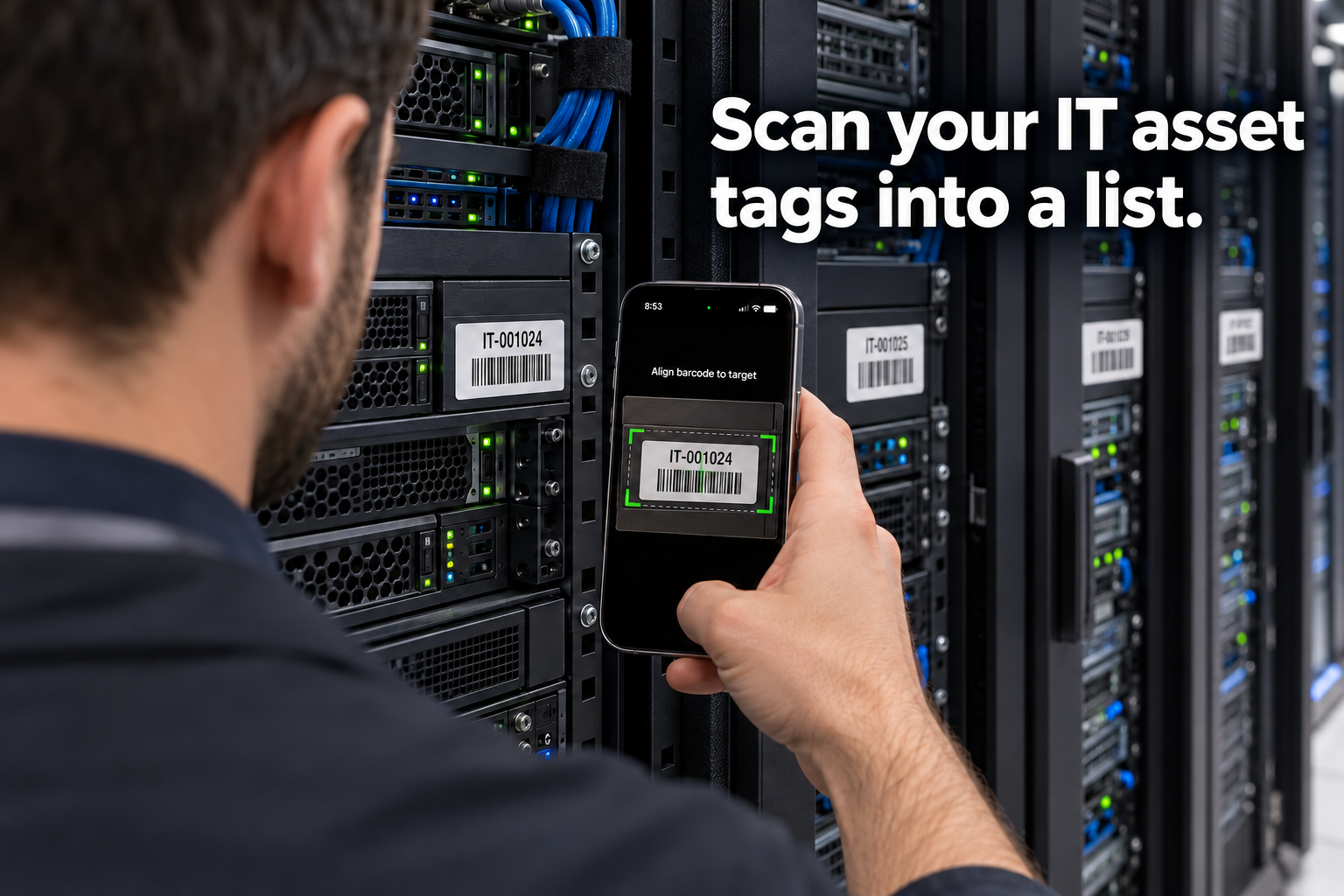
Scan Equipment Asset Tags Into a List on iPhone
Collect barcode numbers from laptops, monitors, and other tagged equipment. Barcode Scanner & Copy keeps them in an editable list you can copy, email, or save as a text file.
No account required. Scanning works offline.

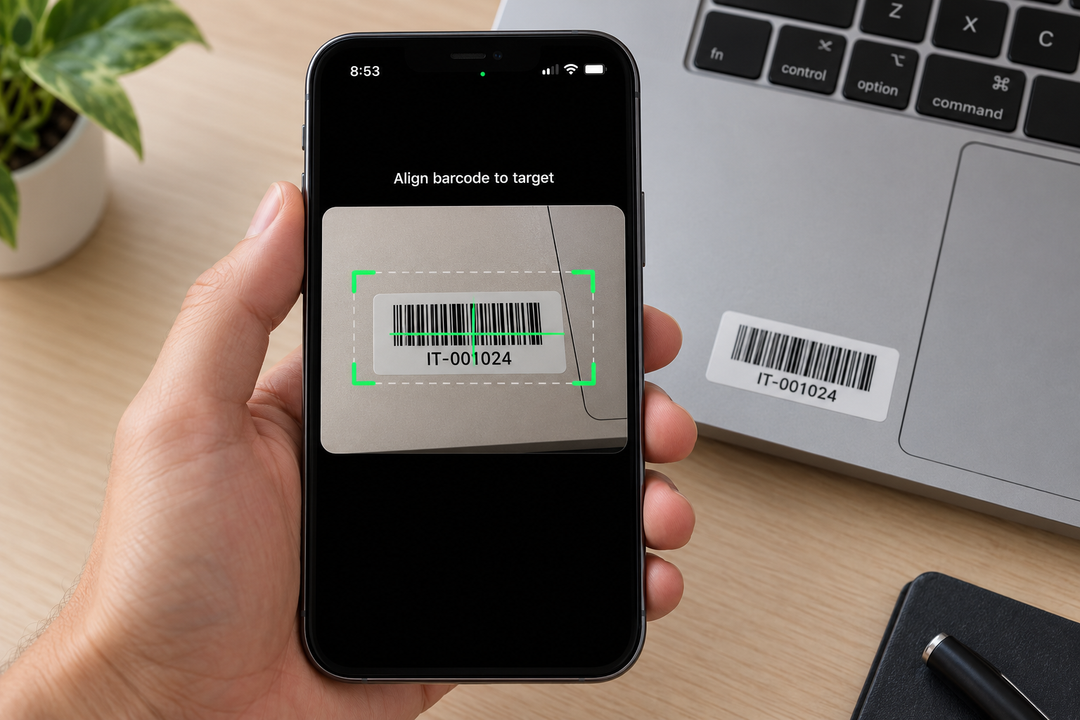
1. Scan the equipment barcode
Open the scanner and point your iPhone at the barcode on the asset tag. The scanned value is added to your list.
Free scanning captures one code at a time. PRO keeps the camera open for continuous scanning.
2. Review your asset tag numbers
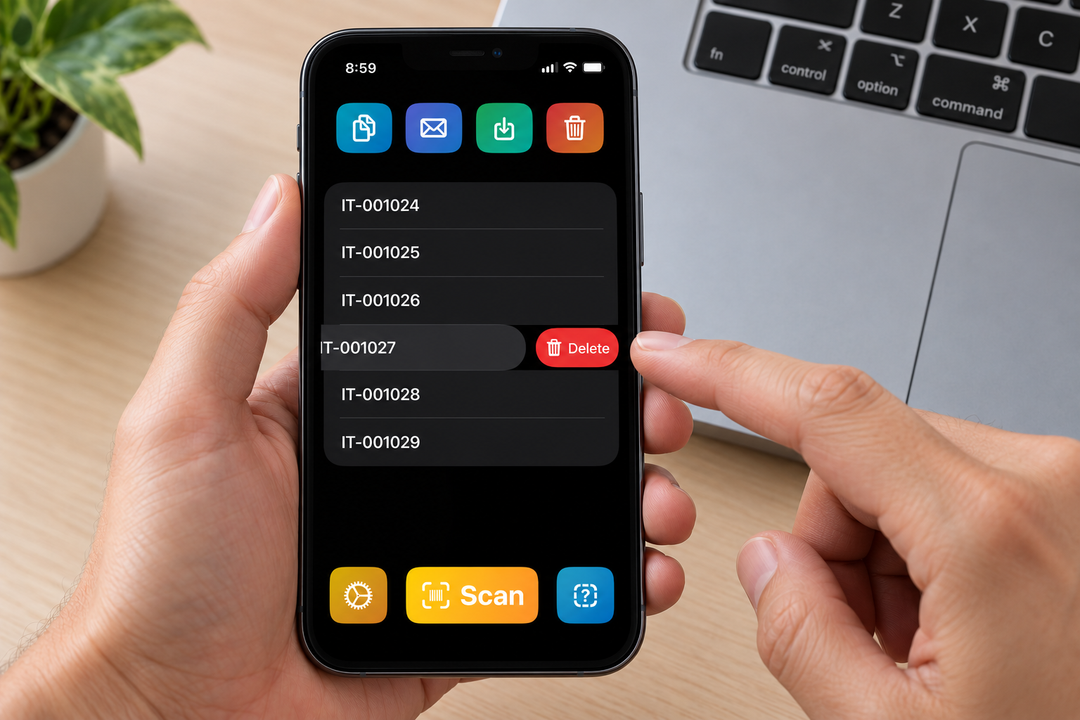
Check the collected values, edit an entry, or delete a scan you don’t need. Your list stays saved on your device between uses.
3. Copy, email, or save the list
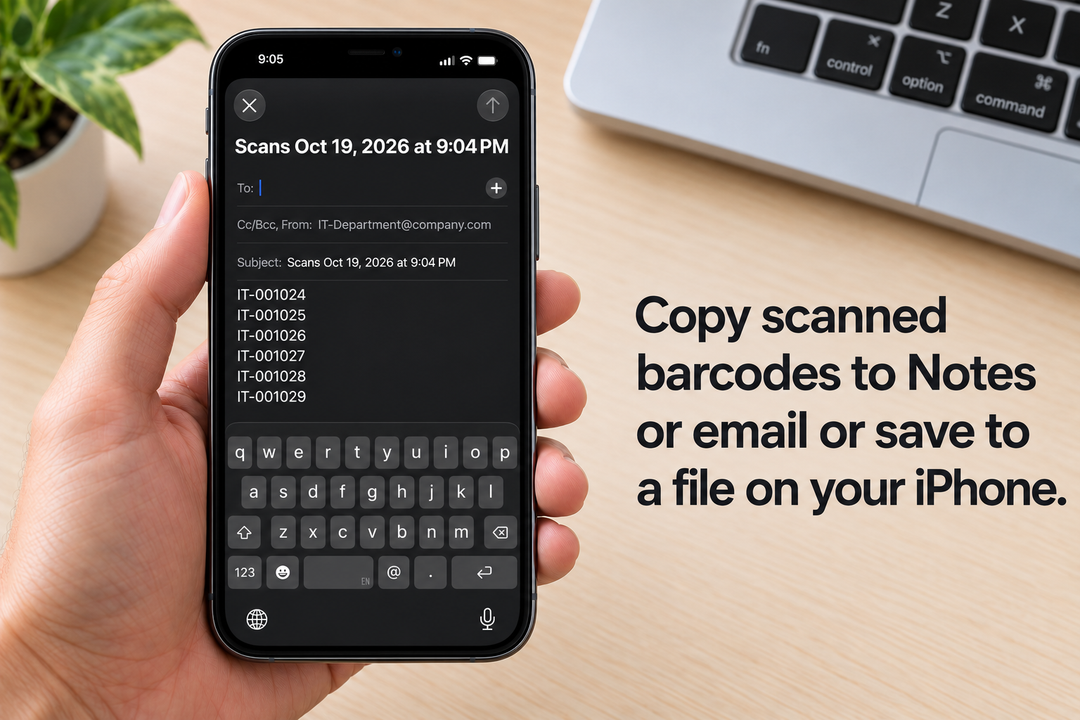
Copy the barcode numbers for pasting into another app, email the list using Apple Mail, or save a plain-text file to Files.
Free scanning and export. PRO for faster collection.
| Free | PRO adds |
|---|---|
| Scan codes one at a time | Continuous scanning |
| Edit and delete entries | Duplicate filtering |
| Copy, email, and save your list | Filter codes by prefix |
The app captures the text encoded in each barcode. Use the collected identifiers with your existing equipment records or spreadsheet.
Ready for your next equipment check?
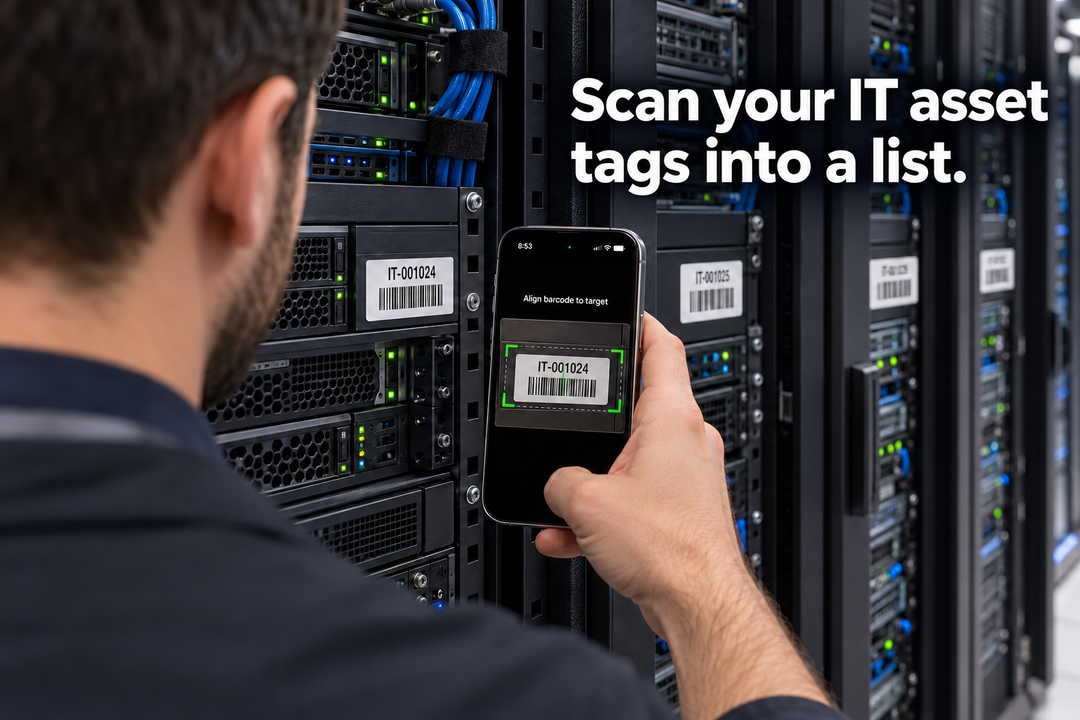
Use your iPhone to scan asset tag barcodes into a list as you check laptops, monitors, and other equipment. Barcode Scanner & Copy is an iPhone barcode scanner for equipment asset tags that keeps the scanned identifiers together in an editable list, ready to copy or save as a text file.
Need to share the results? Scan and email asset tag numbers directly from the app using Apple Mail. Send the collected identifiers to your IT administrator or colleague for use in your existing equipment records.